Master Tracking & Solving with PFTrack Solo in 10 Minutes

Updated: Jul 23
In this tutorial, I will guide you through the process of creating a project, importing a clip, performing tracking, solving and orienting your camera, and exporting your 3D scene.
Link to the footage:
The rock of dunamase by Jay's Photography
Step 01 - Create a Project
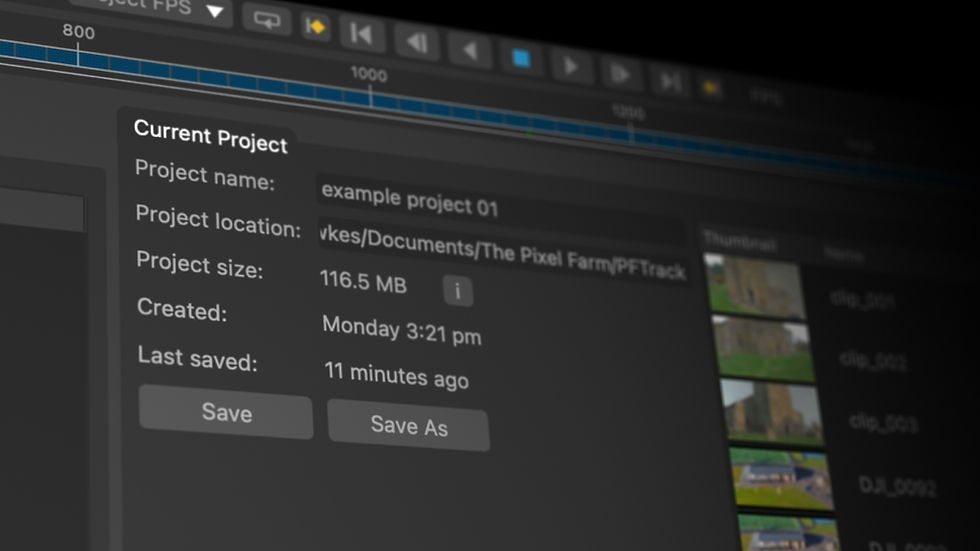
To begin, click on 'Create New Project'. Enter a project name and set a project path. Once done, click 'Create'.
Step 02 - Importing Your Clip
Next, double-click the 'Clip Input' and click the media import button. Browse to your clip and click open. Click on the Undistort tab and set the mode to Automatic.
Step 03 - Track Your Clip
The node tree is a unique feature of PFTrack in matchmoving. It sets PFTrack apart as an industry leader. To create a tree quickly, double-click on the nodes you want to use.
For this step, click on the 'Tracking' tab and double-click the 'Auto Track' node. With the Auto Track parameters open at the bottom, click 'Start Tracking'.
Step 04 - Solve Your Camera
Enter the node panel and click on the 'Solving' tab. Double-click the camera solver and then select 'Solve All'. Press play to review the result.
Step 05 - Orient the Camera
Enter the node panel and click the 'Utilities' tab. Select a point on the ground near the castle door and click 'Set Origin'. Use the 'Edit Mode' and the 'Rotation' controls to align the virtual horizon with the real horizon. Click and drag the scrub bar for a better view.
Using the size of the doorway as a reference, scale the ground plane to the correct size. Each ground plane square represents 1m². The approximate width of the doorway is 1m.
Controls - Cinema
Pan viewer: 2nd mouse button
Zoom viewer: middle mouse button
Now press play to view the results. Use the maximise option on the viewer to see your 3D scene clearly. Adjust the controls for a better perspective.
Controls - 3D Viewer
Rotate viewer: 1st mouse button
Pan viewer: 2nd mouse button
Zoom viewer: middle mouse button
Step 06 - Exporting Your Scene
Finally, add a 'Scene Export' node. Choose a format from the available options, set your export path and file name, and click export to deliver your 3D scene.
If you are a discovery mode user, you will not be able to complete this step until you subscribe.
Additional Resources
For further learning, head back to PFTrack Tutorials. You can also explore our Learning Articles for a deeper understanding of camera tracking and matchmoving concepts. Alternatively, check out our extensive Resources for valuable presets, Python scripts, and macros.
In conclusion, mastering 3D camera tracking with PFTrack opens up new possibilities in visual effects and forensic analysis. With practice, you will enhance your skills and create stunning visualizations.